As described in the Adoption Roadmap, in the section on system oversight, it’s important to keep track of what’s happening inside your Power BI environment. That doesn’t end with “What are my users doing” but also includes “What is enabled or disabled in my Power BI environment”.
Until Build 2023, we advised our clients to save their Power BI Admin Portal settings in Excel, describe the reason why they enabled or disabled that setting, and every month, check the portal to see if all of the settings are still set like they wish. But Microsoft introduces some new settings every now and then, which made it challenging to keep up to date with them. Luckily, they made it much easier to keep track of its settings!
With the introduction of Fabric, Microsoft also introduced the Get Tenant Settings API. If you want to know how to extract this information, I would like to point you to this amazing post by Just Blindbæk: https://justb.dk/blog/2023/06/extract-and-query-the-tenant-settings/
After extracting it, I do some data modeling and come up with this overview:

Here I can easily see what the settings were on a specific date in time. Using a measure, I can create some conditional formatting to see which settings were changed during the current and the last time I exported the settings. Or use a filter to only show the settings that changed. That way I can easily keep track of all my changes in the Fabric Admin Portal:

Now I can also make a measure that counts how many changes there were in a certain period. Putting this on a card visual, and adding it to Power BI Dashboard, I can also create a threshold on it, to get a notification whenever a change happens. For more information about Dashboards, thresholds, and notifications, please check out my blog about that one: https://sidequests.blog/2020/12/23/sending-alerts-to-notify-your-whole-team/
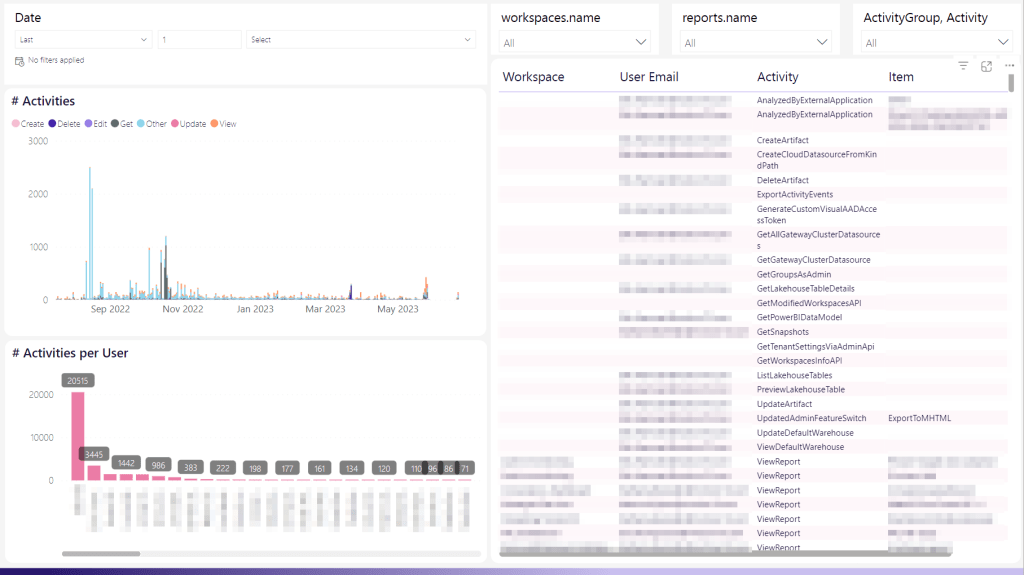
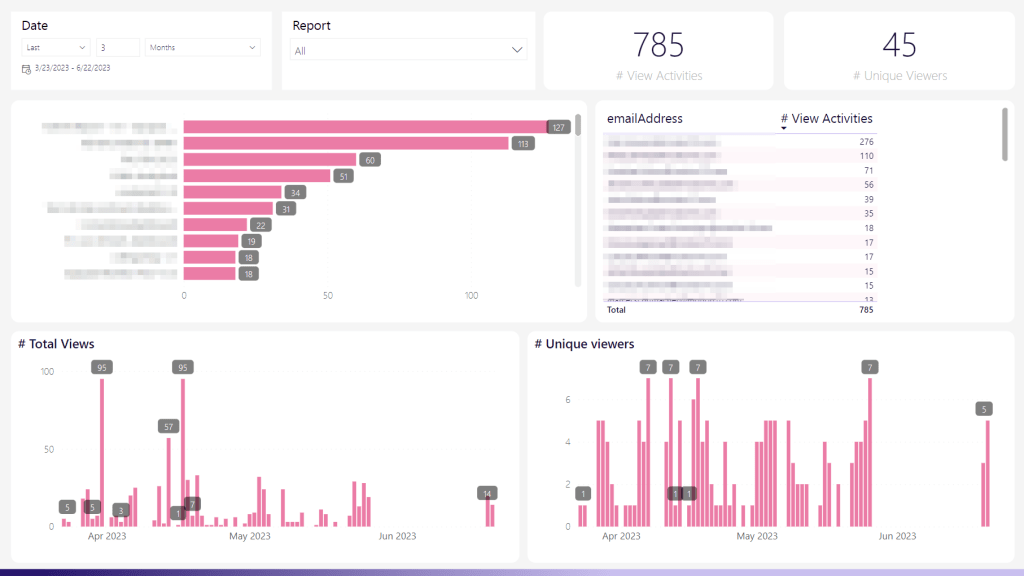
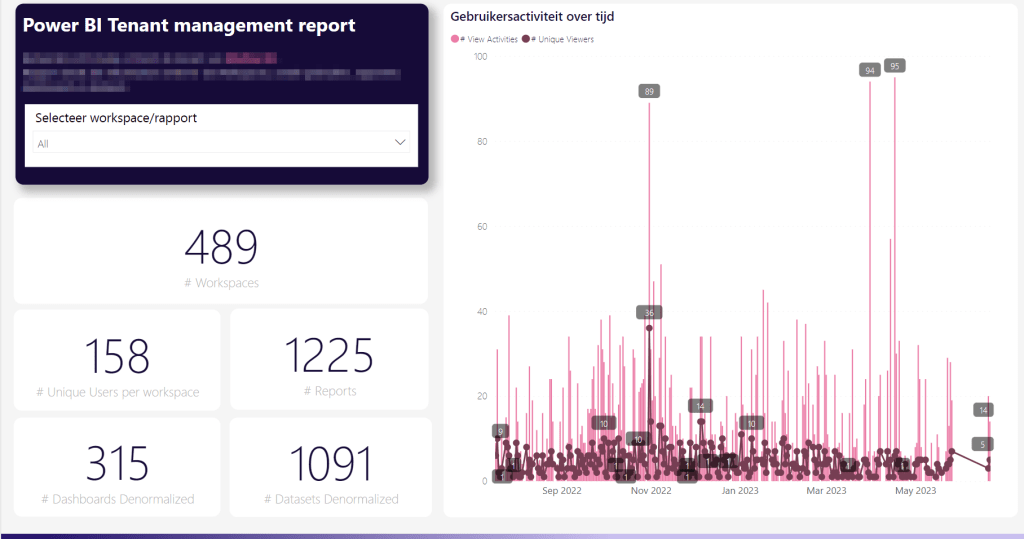
With this new API, we have a very nice addition to our Admin Report, which can be used to view all the activities that happen within our Fabric environment. You can also see the UpdateAdminFeatureSwitch activity in the first screenshot.
Take Care.
 Side Quests