Intro
It’s almost five years since I started working with Power BI, but since that day, there aren’t many without it. And I love to share my knowledge of it with others in the team I’m working with. I started writing blogs only for the team and put them in a shared folder. Sharing the information made me understand the topic better, but there wasn’t a lot of interaction with it. Just because I wasn’t communicating about it.
After we created our own Power BI Team, our own Center of Excellence, this changed. And not because of my blogs, but because we had a space to discuss our own Power BI topics. But how do you keep your team up to date with all the changes happening every month, sometimes even weekly? Welcome to the chat: Power Automate.
What are we going to use?
I already wrote a couple of blogs about Power Automate and we’re going to use it again today. It’s a very easy way to automate things and can be very handy to keep notified about new items posted on the internet.
Since I can remember, the Power BI Blog has an RSS feed option, which can be founded at this URL: https://powerbi.microsoft.com/en-us/blog/feed/ and now the Fabric Blog also has one: https://blog.fabric.microsoft.com/en-us/blog/feed/ Now lets hope they make some extra product blog/feed for the other domains of Fabric! This RSS feed can be used within Power Automate to create a flow that will send an update in my Teams channel whenever something new is published:
This one includes an adaptive card as well:
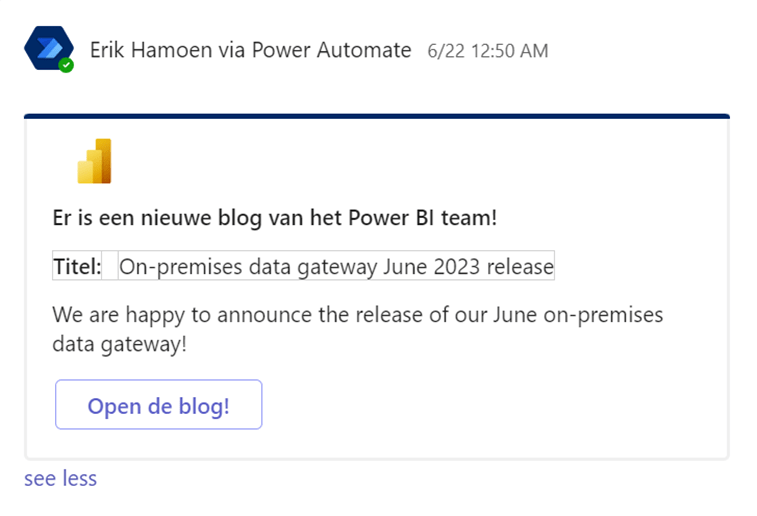
And this one is just a simple one:
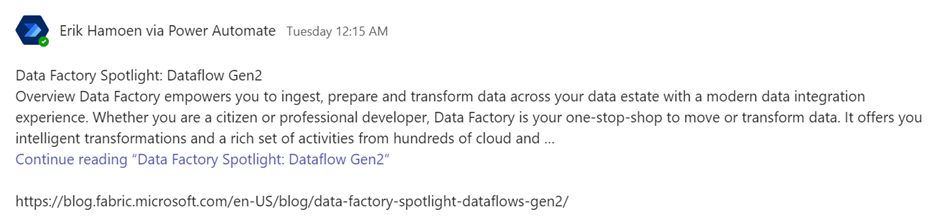
So let’s go to Power Automate and create a notifier!
Inside Power Automate
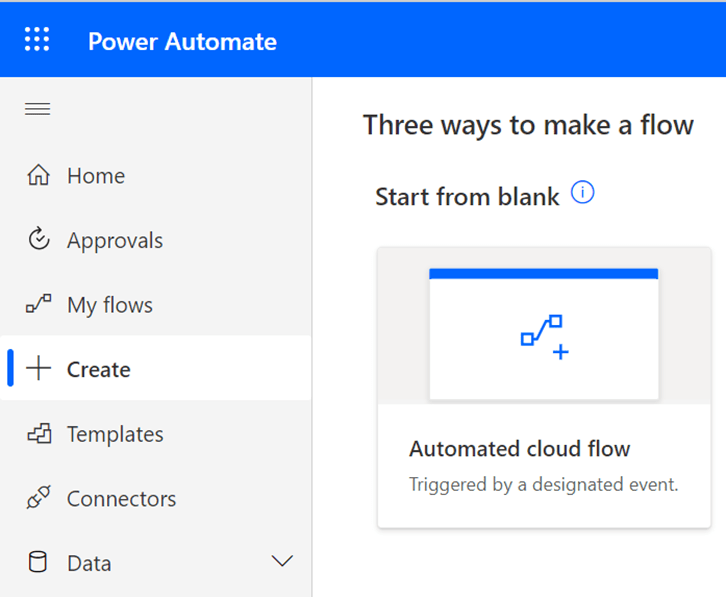
At Power Automate we go to create, and select the automated cloud flow flow:
In the next screen, add the RSS URL and keep the date on Published Date:
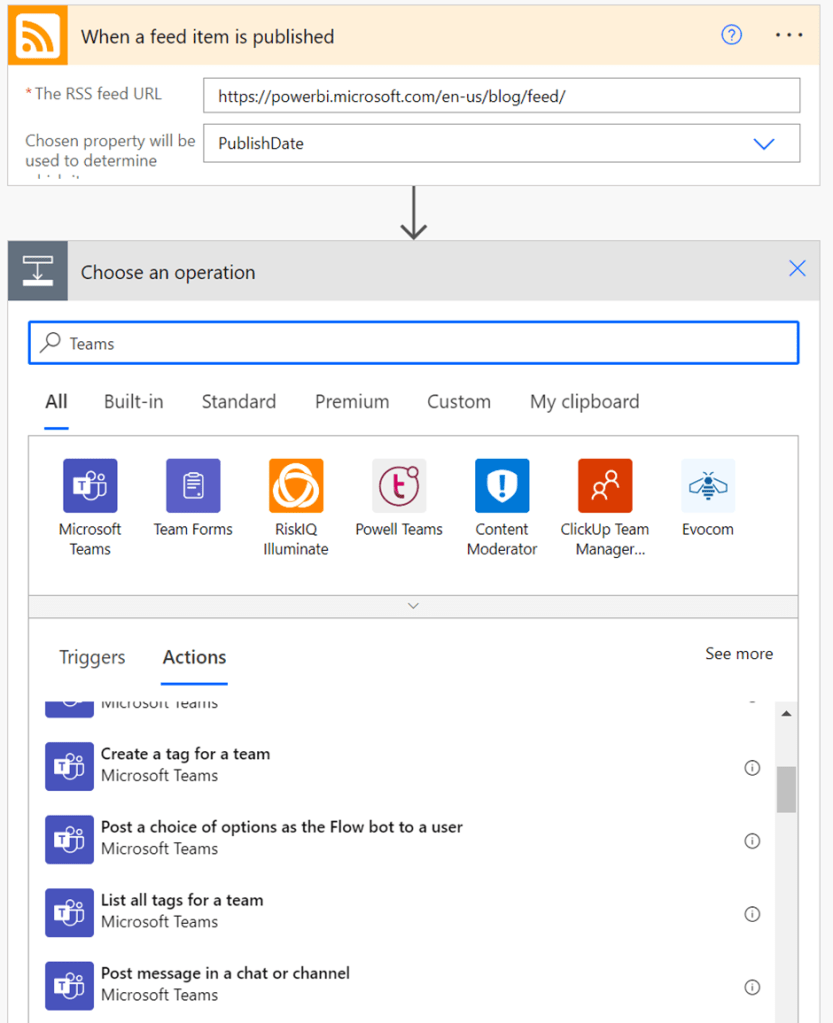
When you add the next step, search for Teams, and select “Post message in a chat or channel”. After you select the option for “Post In”, you get some extra options. Select the preferred Team and the preferred Channel (which can also be General) and go to the message field.
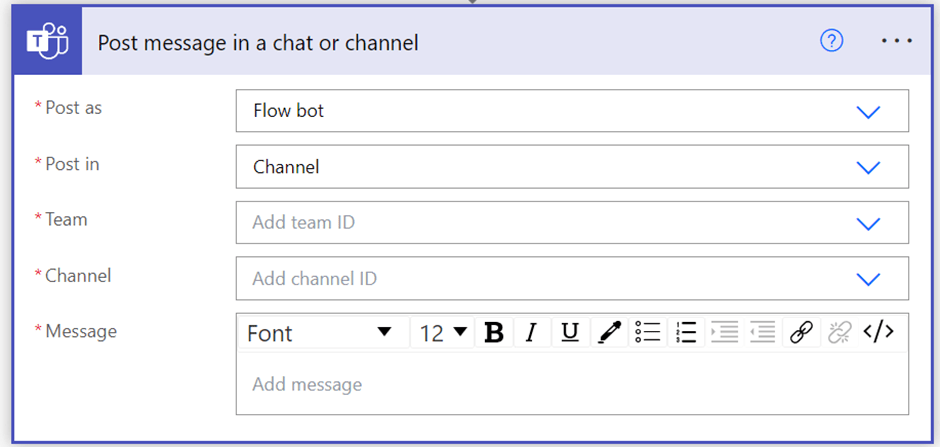
When you select the Message field you can also select Add dynamic content:
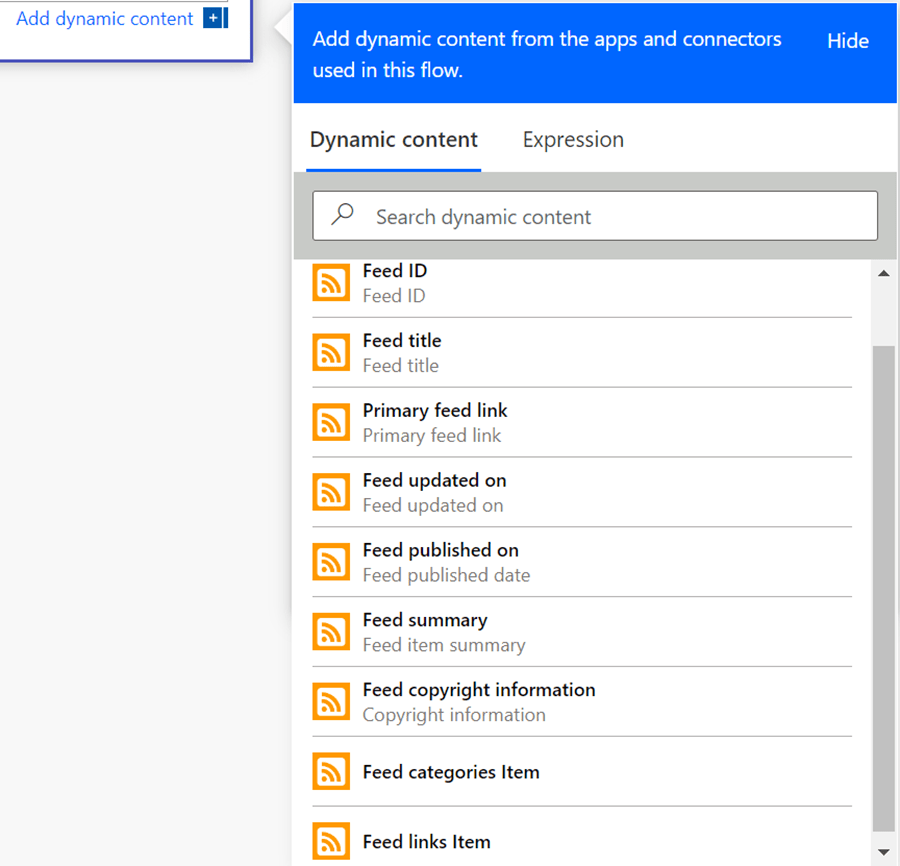
This is the content that is captured from your RSS URL. To keep our colleagues up to date, lets select the Title, the summary, and the Primary feed link:
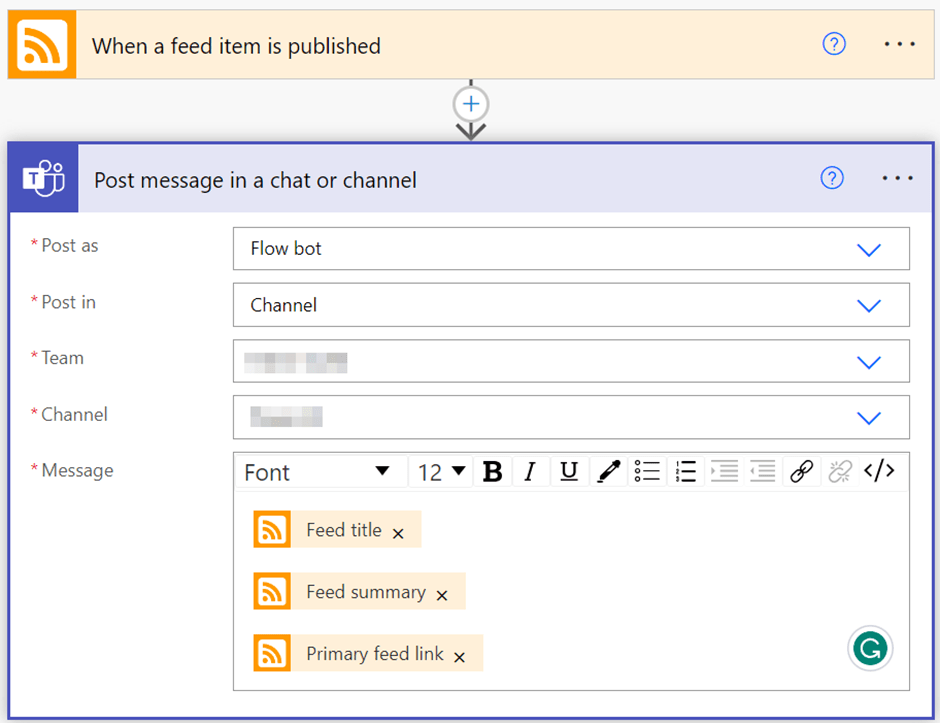
And that’s it! You can save your flow and turn it on. And now all the updates from the Microsoft Team about Power BI will automatically show up in your CoE!
You can also do this for your favorite YouTube videos, Guy in a Cube for example. Or Reid Havens, How to PowerBI, there is so much good content over there! But instead of an RSS trigger, use the “When a video is uploaded by a channel” from YouTube (you need to be subscribed to that channel).
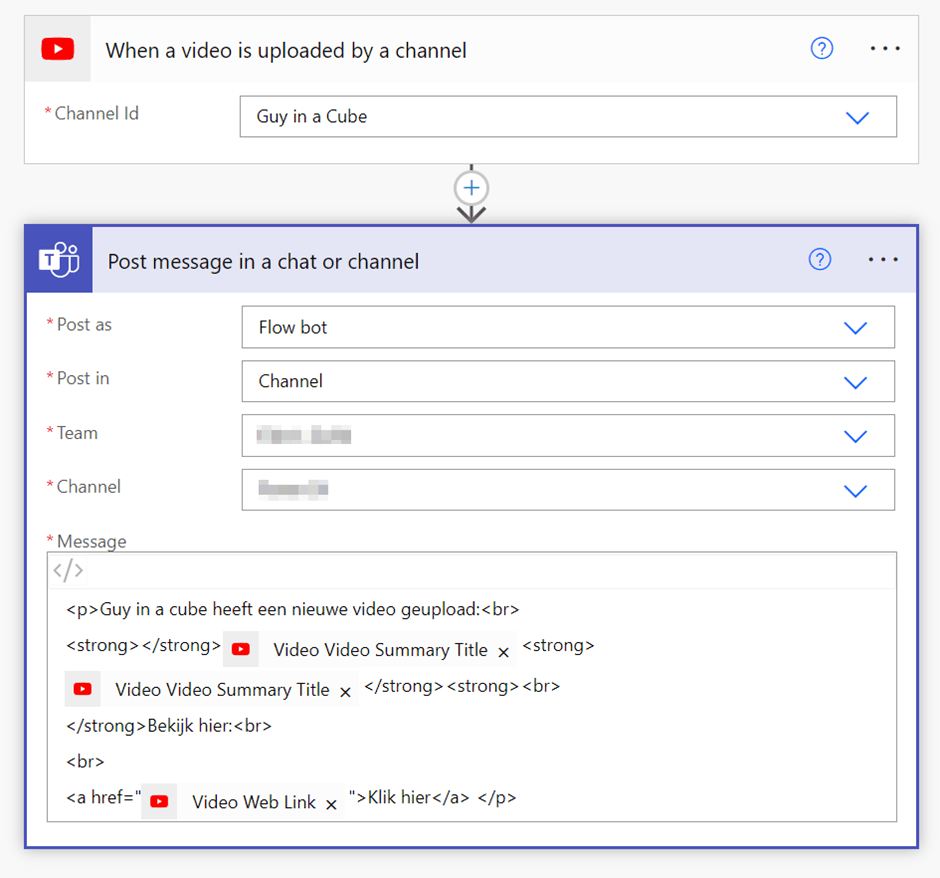
Now the great thing about Teams channels is that you can also use it to react on posts. So, if the interaction is still not there, try to give them a little summary. Why should they watch it, or why should they read the new update about Power BI.
Wrapping up
Setting up a center of excellence is crucial for keeping the knowledge up to date within your team and Power Automate can help with that.
Take care.
 Side Quests