In my previous blog I wrote about the impact analysis you can do when you use one dataset to serve multiple reports (in multiple workspaces). But how do users know with which data they can connect? Let’s have a look at that today!
Content Ownership
Let’s start with content ownership because this topic is most useful for self-service organizations:
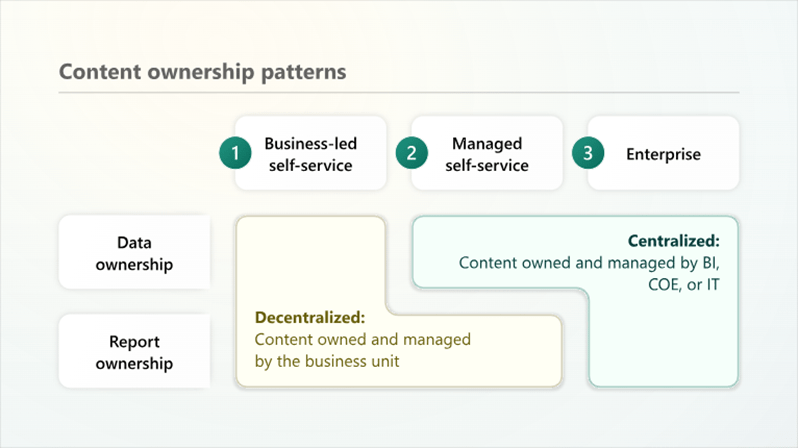
If you have an enterprise pattern, all is owned by the BI or IT team, and there won’t be many report creators. Sharing datasets is probably not a topic you worry about. With Managed self-service, the data models are made available by the BI/IT team for use by a bigger group of creators. With business-led self-service, “everyone” can own and manage datasets and reports. Therefore, everyone can also share their datasets with who they want.
Sharing dataset
To allow people to use your semantic model, you can either give them access to your workspace (this gives them direct access to all the semantic models in that workspace) or give them access to an individual artifact. This is especially nice if you use one workspace for multiple datasets, managed by the BI/IT team.
To individually grant access, you have multiple options:
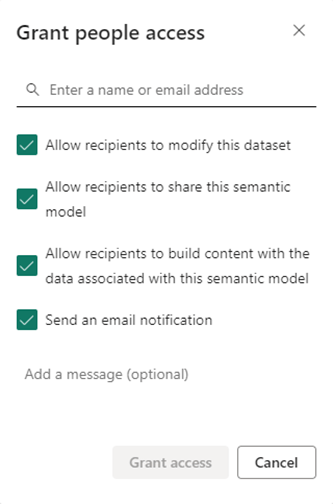
If you disable all the checkmarks, people get read access only. To build reports on a dataset, only the third option is needed. That way they can’t modify the dataset but can create reports (and measures inside this report).
The data hub
To keep track of all the data sources you have access to, you can navigate to the OneLake data hub. Here you’ll find all the data that is available for you. Either because you are the owner, or because you’re in the same workspace, or someone shared it with you.
It looks something like this:
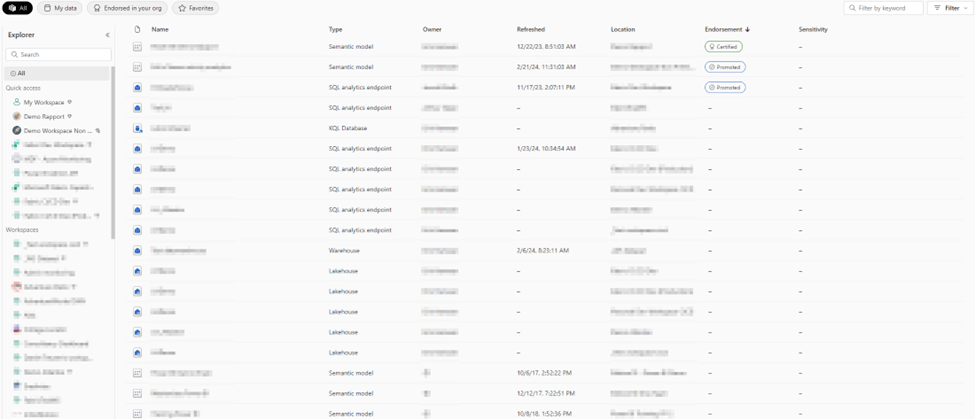
On the left, you can see all the workspaces where the data is located. But don’t worry: You can only see the item in that workspace that is shared with you!
On the right side, you can see the endorsement labels, which play the main role in the next chapter!
Endorsement & discovery
There are two endorsement labels: Promoted and Certified and all artifacts except for Power BI dashboards can be endorsed. Every content owner can promote artifacts of which they are the owner, certification can only be done by a select group of people, which can be changed by the Fabric administrator. Usually, these are the Center of Excellence and/or the BI Team.
When promoting your semantic model, you can also make this semantic model discoverable for everyone:
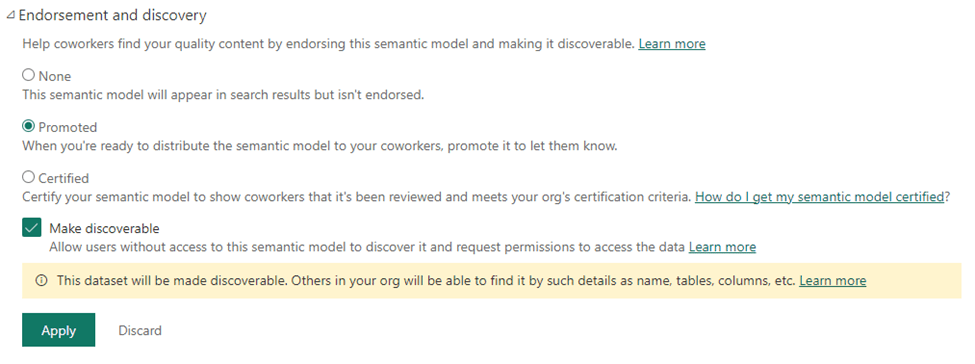
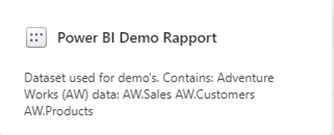
It doesn’t grant everyone build permissions, but now they at least know the dataset exists. It’s very important to give your semantic model a good description, so people know what type of data is inside. You can change the description in the settings for your semantic model, and it will look like this in the Data hub:
Getting access to a dataset
The last part is how to get access to this semantic model you just discovered!

As you can see in the image above, I discovered one semantic model I don’t have access to! The owner is also hidden because dataset access is required to see the owner’s name. Simply clicking on the icon next to Semantic Model gives me a pop-up that I can use to request build permissions:
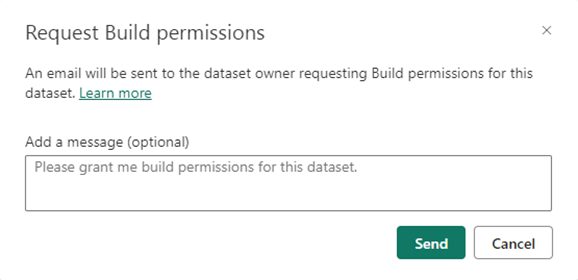
And then it’s up to the owner of the model to grant me those permissions, or not of course!
Wrapping up
So that’s it, the OneLake data hub. I personally really like this feature to see all the semantic models I have access to, and easily see all the promoted and certified datasets. See you in the next blog.
Take care.
 Side Quests
2 thoughts on “Experience the OneLake Data hub”