You only know the things you heard about or read about. For me, that means I’ve been working with Power BI for 5,5 years now but never knew there was a barcode scanner in the mobile app until I read the April monthly update!
Because it’s new for me, it might also be new for you, so in this post, I’ll tell you all about it and show you a short demo! For this demo, imagine a warehouse where we pack online orders with products sold in an Adventure Park.
Setting up your data
It’s important to remember that only one barcode column is allowed in the whole semantic model. If you have more, it will not work! A barcode is nothing more than a visual that shows a series of numbers (sometimes letters), readable by a computer (in this case a scanner). So, we’re not saving the barcode itself, but the series, and categorize this data as a number.
For this demo, I’ll be using barcodes that I created myself, but you can also give it a try with some real products around you! I generated four codes, and pasted the data into my table:

After loading the data, go to categorize and select the barcode. And that’s it. Now, you can turn your smartphone into a barcode scanner to filter a report, based on the barcode it scans.

Creating the report
Before going there, I’ll just create a nice mobile layout report with some information about current stock, location, order size, and number of orders:

Now, it’s unfortunate that you can’t use a background image for the mobile layout. So I added an image, put that full screen, and put my new card visual on top of that.
On my phone, it looks like this:
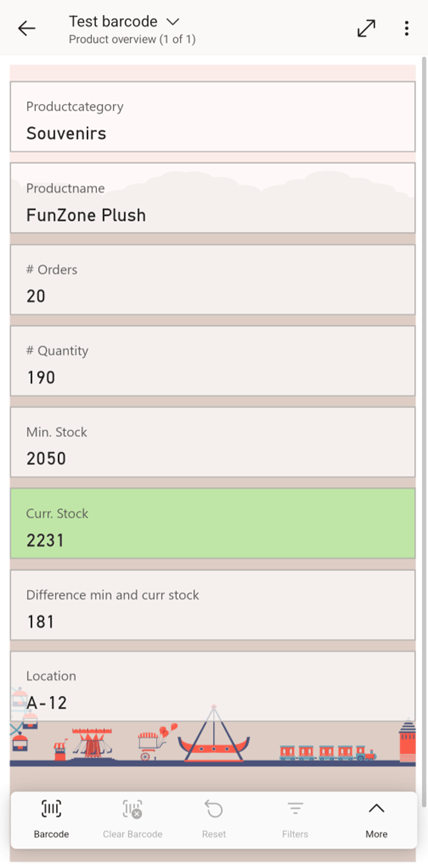
As you can see, on the left bottom, there’s a barcode icon. After I click it, the camera opens and I can use it to scan barcodes!
Since I’m using fake barcodes, I added them as an image in another report. When I scan those, my report will filter on that specific product!
Here’s a screenshot of the report with the barcodes:

Demo
Now, the scanner works very, very fast. The barcode doesn’t need to be completely in the frame so you must be very precise and when there are (parts of) multiple barcodes visible, you’ll get an error. Here’s a short video of how it works:
Wrapping up
This barcode scanner gives you very nice possibilities, for example in warehouses or other places where you want to keep track of products or places. You can also put barcodes on desks and see how many people reserved that place.
It’s also nice to discover new things in Power BI, even when they have been there for a very long time already.
Take care.
 Side Quests
1 thought on “Using the barcode scanner in Power BI mobile”