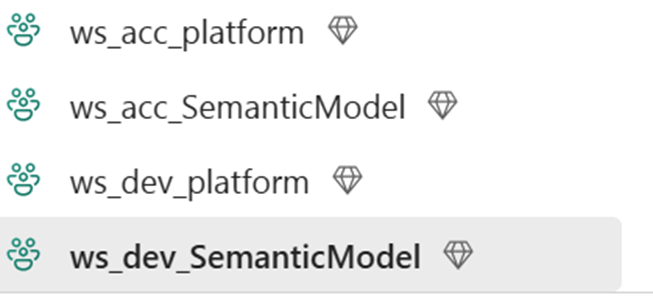
Recently I started working with a semantic model that runs Direct Lake on OneLake. There is a separation of platform and semantic models in the workspaces, which will look like this:
By using deployment pipelines, we want to move the model from Dev to Acc:

Which works of course, but now the model has a Direct Lake connection still to the development lakhouse:
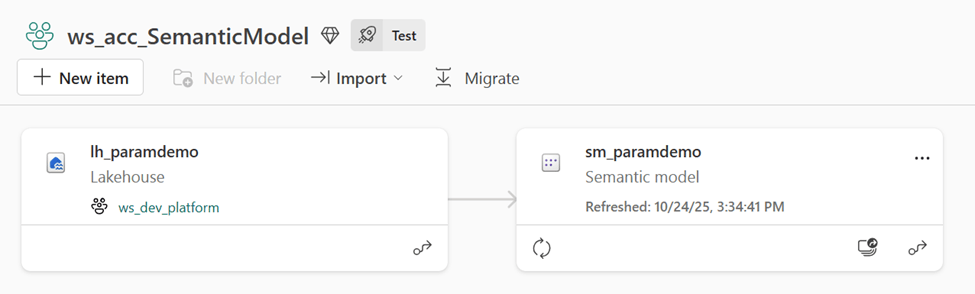
We want to connect the model in acceptance to the lakehouse in acceptance (obviously). So, what do you do? Deployment rules! With deployment rules, you can adjust connections and parameters to specific items, per deployment phase:

But the problem is that with Direct Lake on OneLake, the deployment rules are greyed out:

So what now?
We tried different solutions: Use Azure Deployment Pipelines for datasets. You can easily change the connection to the correct lakehouse. But now the Power BI reports (not in this demo) lose their auto binding. You can manually publish your reports to Dev, Acc en Prd report workspaces, but that’s not what we want.
Another solution was to edit the connection using TMDL view. By editing the semantic model in Power BI desktop, I can open the TMDL view to see the connection:
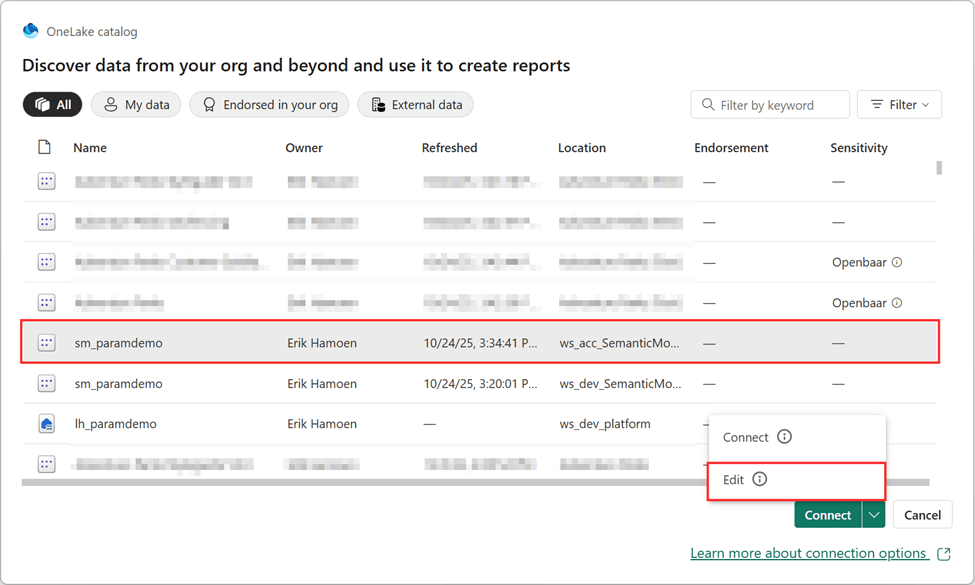
In the TMDL view, drag the Expression to the page:

The workspace and lakehouse id/Guid can be found by opening the lakehouse and checking the address bar:

After applying this change and refreshing the page, we can now see the model is connected to the correct lakehouse:

But the downside is that every time you apply changes to your model and put that in the deployment pipeline, you manually need to change the parameters again. Which you don’t want.
The question is: now what? Thankfully, Rui Romano came to the rescue and explained that changing the TMDL files using Git (and not Power BI desktop) should be possible. So after connecting the Development workspace to a Git Environment, we could edit the Expressions.tmdl in (my case in) Azure DevOps:
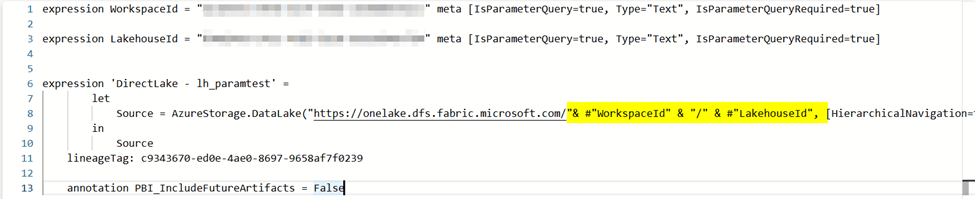
First step is to create expressions for the workspace id and the Lakehouse id. After that, we need to change the source URL for the connection. Here’s the code for easy copying:
expression WorkspaceId = "YourWorkspaceID" meta [IsParameterQuery=true, Type="Text", IsParameterQueryRequired=true]

expression LakehouseId = "YourLakehouseID" meta [IsParameterQuery=true, Type="Text", IsParameterQueryRequired=true]


expression 'DirectLake - lh_paramtest' =
		let
		    Source = AzureStorage.DataLake("https://onelake.dfs.fabric.microsoft.com/"& #"WorkspaceId" & "/" & #"LakehouseId", [HierarchicalNavigation=true])
		in
		    Source
	lineageTag: c9343670-ed0e-4ae0-8697-9658af7f0239

	annotation PBI_IncludeFutureArtifacts = False
After committing the change, we get an easy notification in the Power BI service that there’s an update for our semantic model:

After updating, the last thing we need to do is run the pipeline again, and now we can change the parameters:
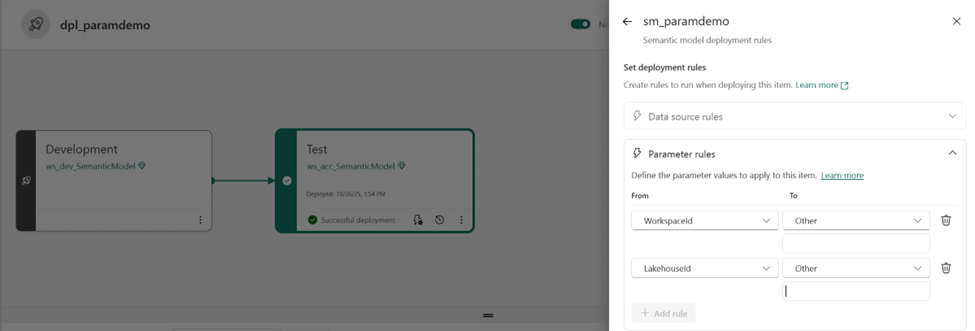
Now we just have to deploy one more time and we should be finished:

And the result is this:

A semantic model which is connected to the correct lakehouse!
The semantic model still can be edited in the service, and of course, using Git, but you can’t edit the semantic model in Power BI Desktop anymore:

Now I really hope this blog post isn’t needed for a long time, and that parameters will be supported in a normal way and that we can keep using the desktop application as well. But until that time, I really hope this helped! I couldn’t find much information on the internet so decided to write my own post about it. Thanks to Rui, I got it working!
Take care.
 Side Quests