It’s common usage to create one (or a few) datasets semantic model for Power BI that can be used by many other report creators. But if you want to update the semantic model, who do you need to notify? How do you really know who made reports on your model? Let’s find out what Microsoft gives us!
1. Setup
First, I created two workspaces, with the creative names “Workspace for DS” and “Workspace for Report”. In the first one I published a report including a small semantic model. In the second one I published a report that is connected to my semantic model
And then the fun starts! What can we see?
2. Updating the semantic model
When I update the model and try to publish to the DS workspace, I get the following information:
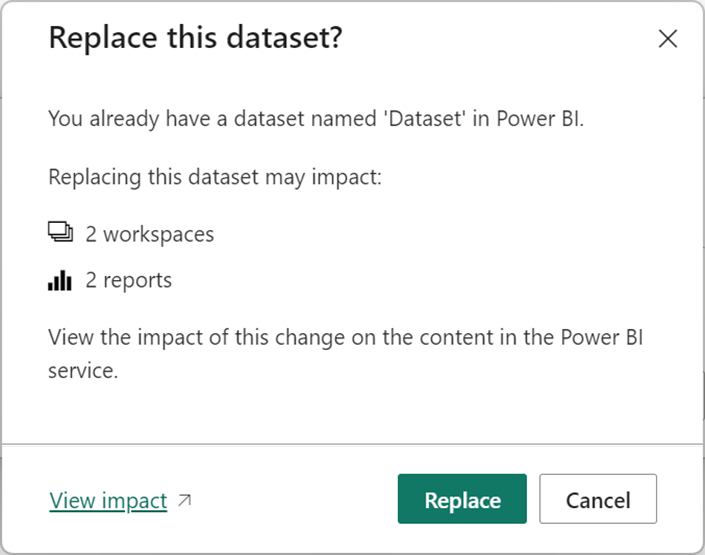
From here, I can go to “View impact” (which will open in your browser) and already see that the update of my report will impact 2 workspaces and two reports. If I create more reports in the Report workspace, it will say 2 workspaces and 3(+) reports.
Before we hit Replace, let’s check the impact:
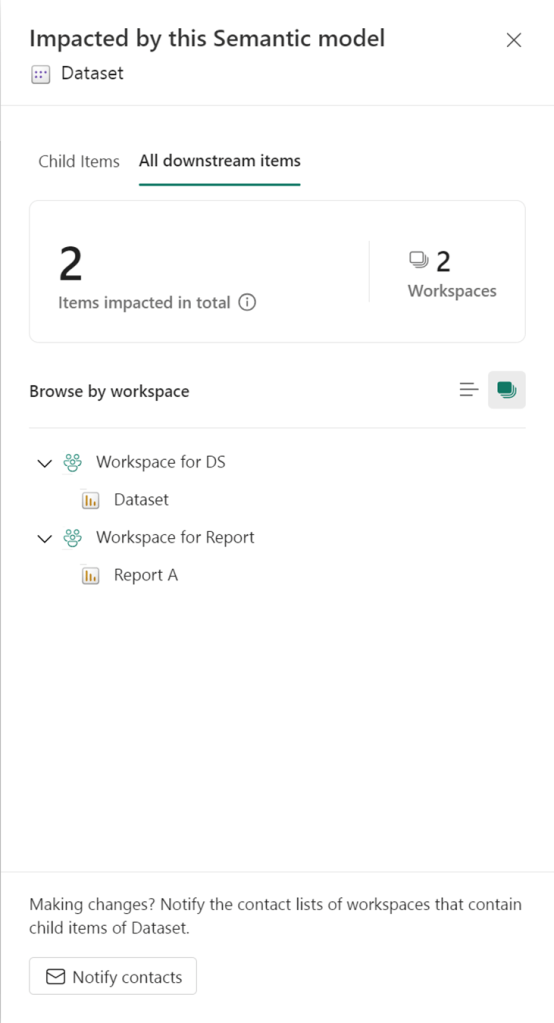
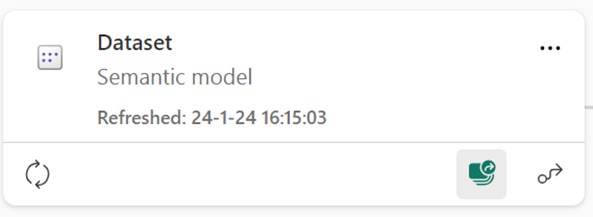
This screen can also be opened by clicking the “show impact across workspaces” button:
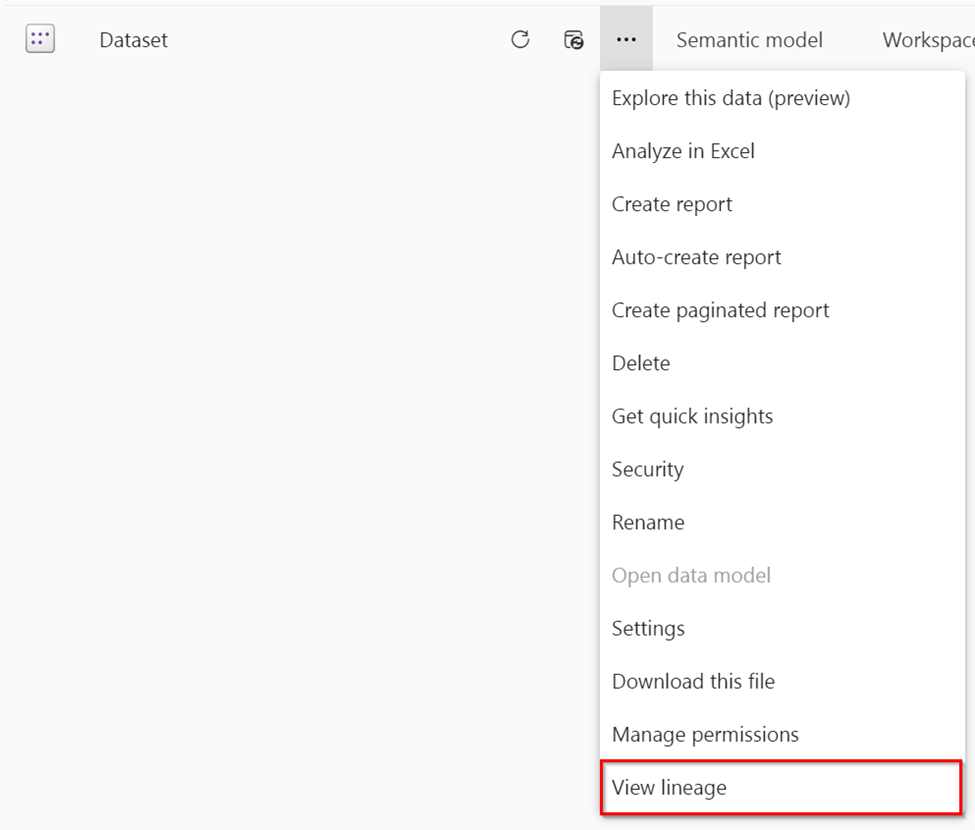
Or in list view, the View linage button:
But we can see the workspaces because we have access to them. So, we can also contact the owners of that workspace individually. But if you don’t have access to the workspace, you don’t see the workspace, or the report.
3. Another workspace without access
Now, image a colleague making a report based on your model. And publish it, but they don’t give you access. When you publish an update, or check the impact analysis, this is what you see:
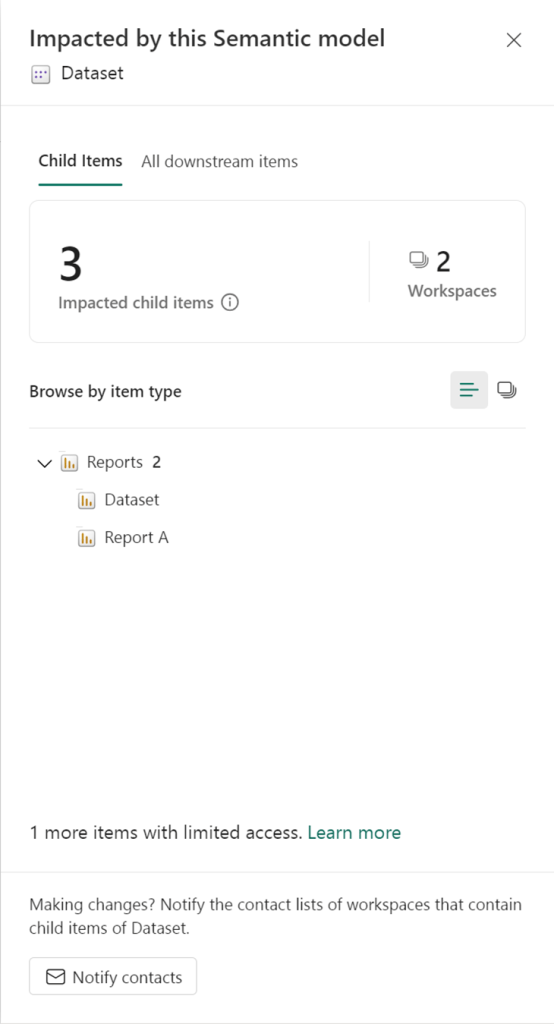
Three items, but we only see two. And on the bottom we see “1 more items with limited access”, which will lead to this page: https://learn.microsoft.com/en-us/fabric/governance/impact-analysis
At the bottom it says that because of privacy (item names may contain personal information) you won’t see those. But, luckily, the “notify contact” will reach them!
Fun fact, if you have access to the report, but not the workspace (individual report sharing), you’ll see the report name:
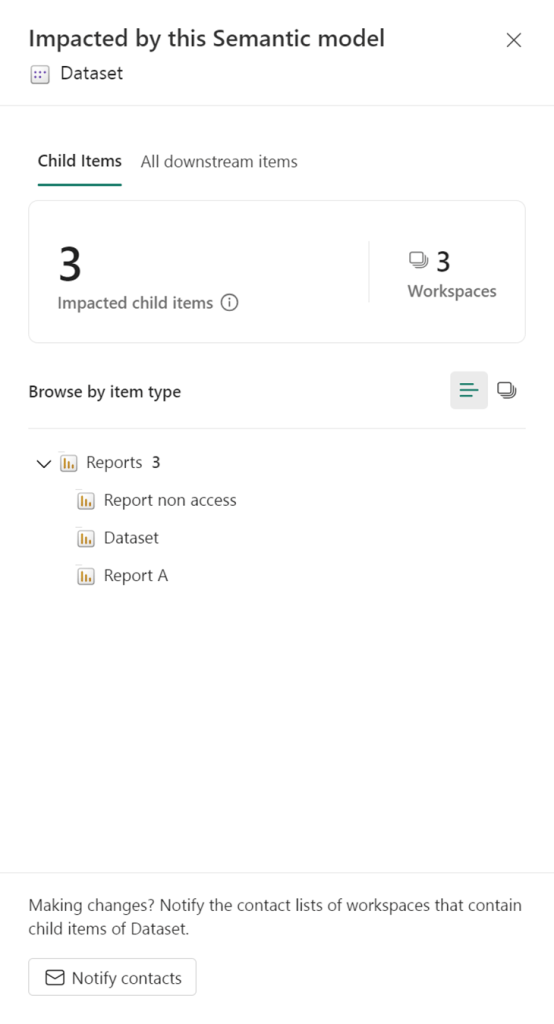
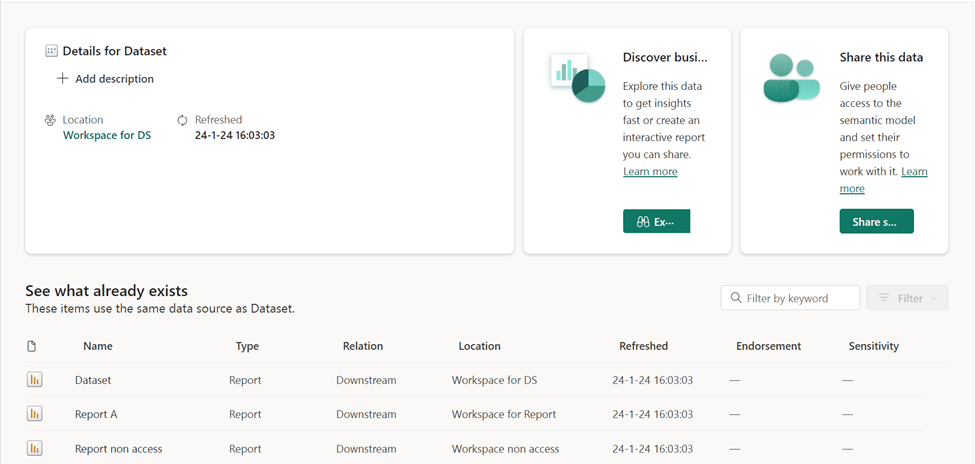
But now, let us use the “Notify contacts” option! Unfortunately, this is not possible from the publishing screen, so you probably just hit publish and after that notify the contacts. Here is the screen, where you can post your own message:
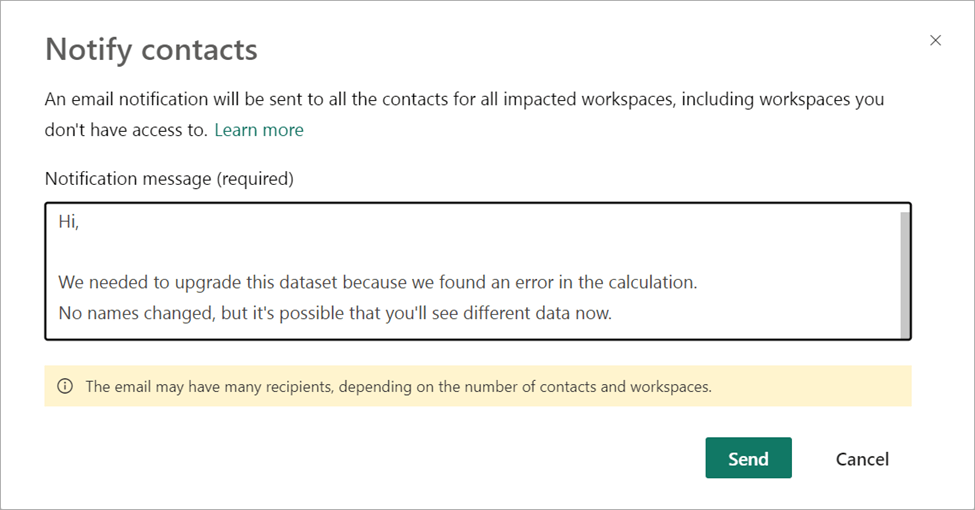
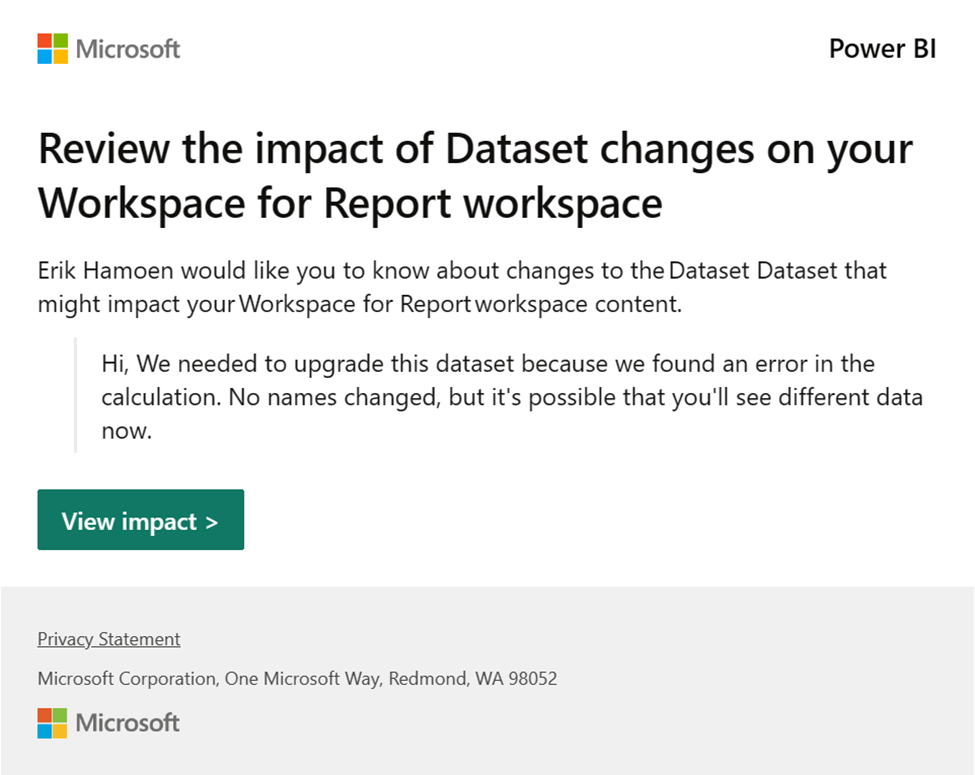
And after a bit, the contacts will receive this e-mail:
4. What can we improve?
Now, one of small things that I rarely see used is the custom message you can show, before someone publishes to the service.
In the Admin portal, go to Help and support settings and expand “Show a custom message before publishing reports”:
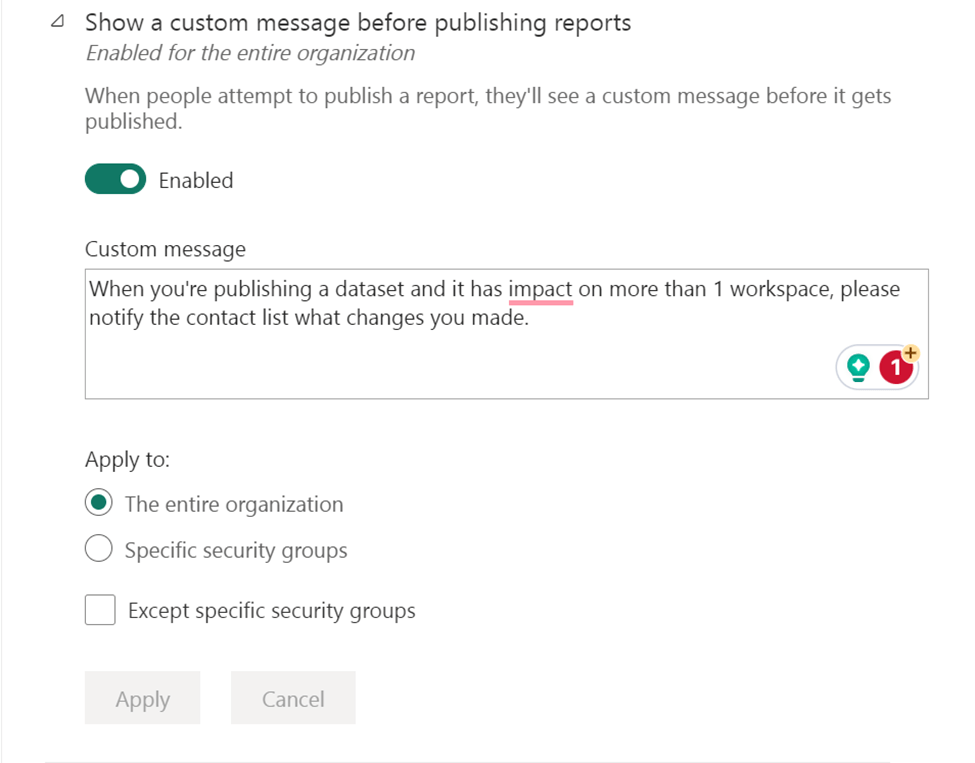
Here you can write a custom message for the entire organization (or a smaller part) that will pop up before publishing. That looks like this:
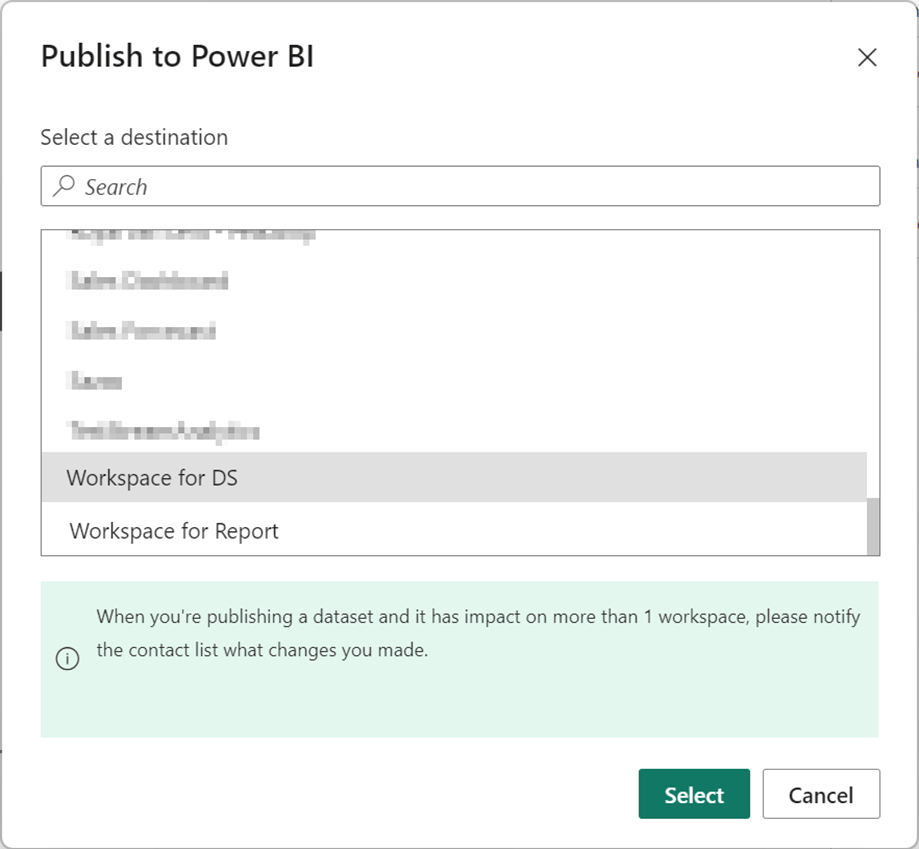
It will give a small reminder to the publisher that he needs to notify the contacts of impacted workspaces.
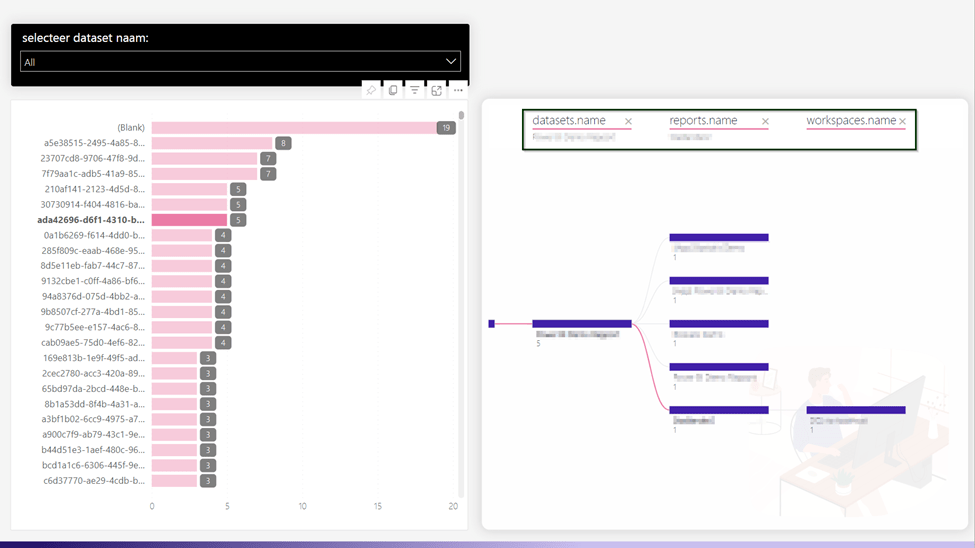
To see ALL the reports that are connected, you’ll need to use the Power BI API’s. With the API’s you can get all the reports and to which dataset they are connected. Then you can make a report that looks something like this:
5. Wrapping up
With all that, let’s finish this post. Hopefully it helps to keep your report creators happy without surprising them, with suddenly new or changed tables/columns.
Take care.
 Side Quests
Good job!
LikeLiked by 1 person